Printing Your Scorecard#
A completed scorecard is worth keeping. Whether you’re a parent saving a record of your kid’s game, a stat-keeper archiving a season, or just someone who likes a tangible record, printing gives you something you can file, frame, or hand off.
BaseballScorer produces a print-ready scorecard layout directly from the app — no export, no desktop software required.
The Print Layout#
The printout is formatted for landscape US Letter (11" × 8.5"). Landscape orientation gives the inning columns room to breathe — portrait would squeeze the grid too tightly to be readable.
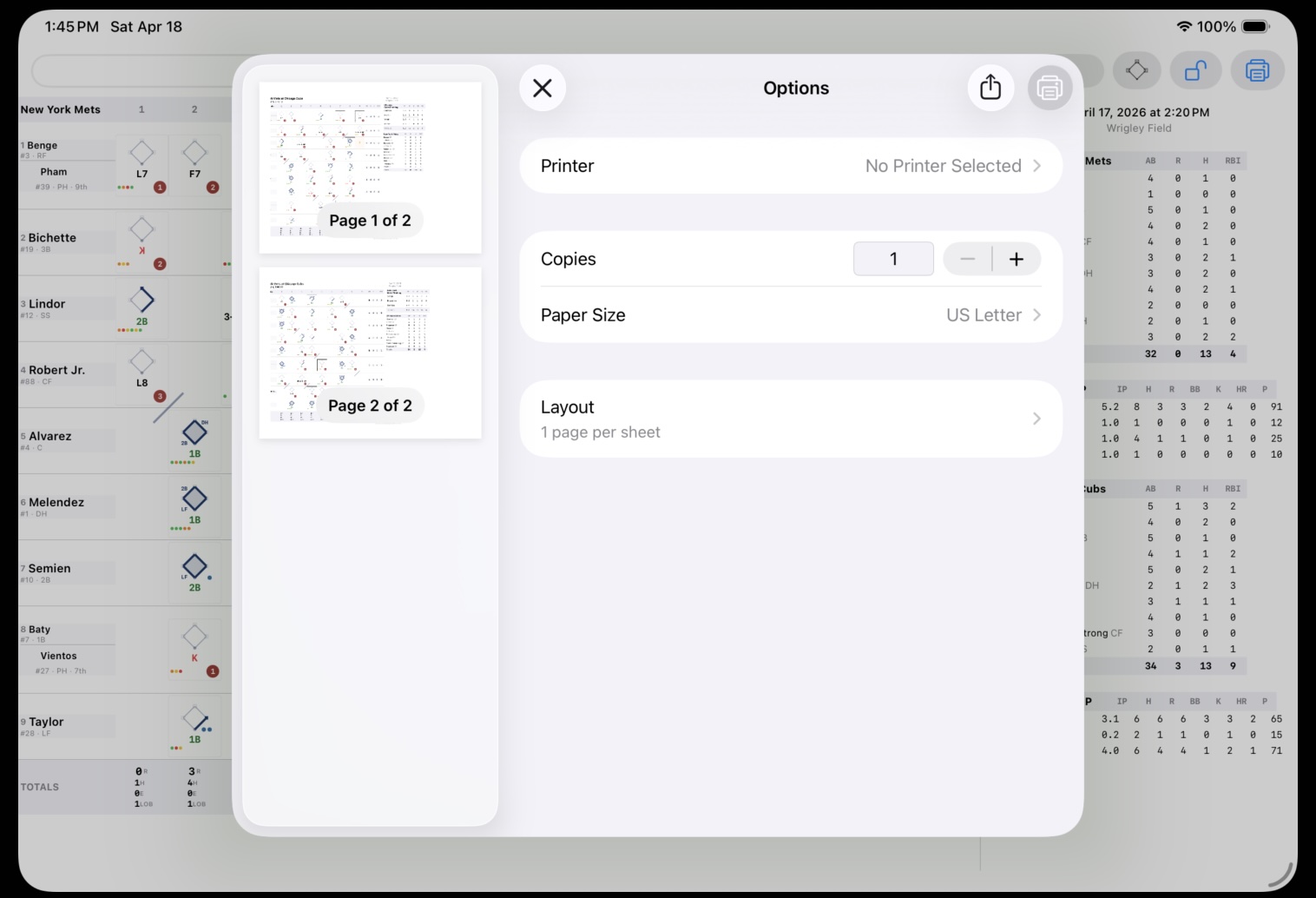
Each team gets its own page, so a complete game printout is two pages.
Page structure:
- Header — team names, final score, date, venue, and any game notes you entered
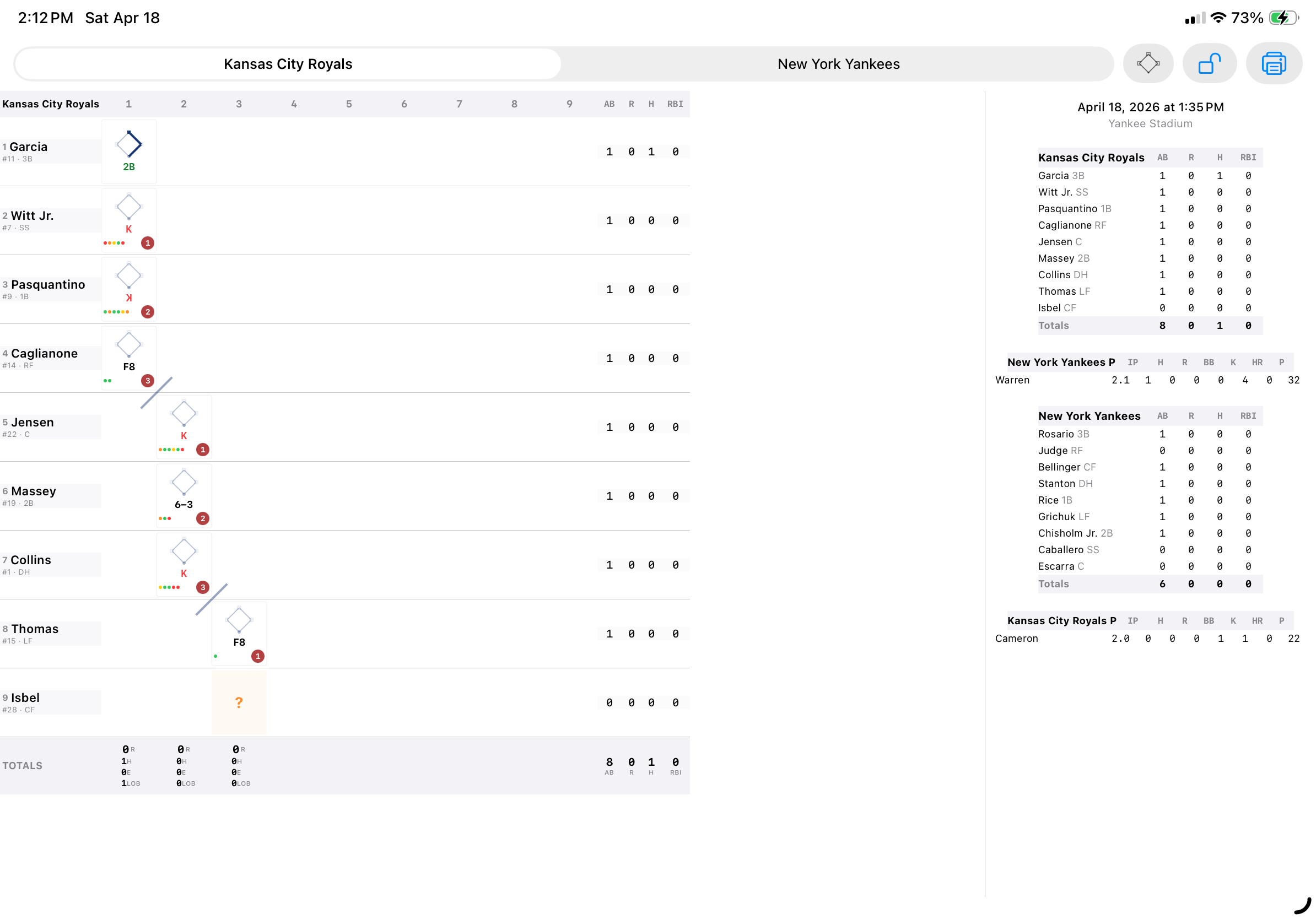
- Body — the full scorecard grid: player names, all inning cells with mini diamonds and fielding notation, and the stats column (AB/R/H/RBI per player)
- Footer — “Scored using BaseballScorer [version number]”
The printed scorecard includes all the same overlays you see on screen: pitching change lines, substitution lines, inning-end diagonal slashes, and ghost runner cell markers. What you see in landscape view is what you get on paper.
If any at-bats have notes attached, those are collected in a footnotes section at the bottom of each page, referenced by cell position. This keeps the grid clean while preserving annotations.
How to Print#
Tap the print button in the scorecard toolbar (visible in landscape orientation). This opens the standard iOS print panel, where you can choose a printer, adjust copies, and preview before printing.
AirPrint-compatible printers work directly from the iPad without any additional setup. If you’re printing via a shared printer or a print-to-PDF workflow, iOS handles that through the same panel.
Tips#
- Print after the game is complete for the cleanest result — mid-game printouts will have blank cells for unplayed innings.
- If you want a PDF instead of paper, choose “Save to Files” or “Save as PDF” from the iOS print panel. Same layout, digital file.
- The print layout is optimized for Letter paper. A4 paper (common outside the US) is slightly narrower and may clip the rightmost stat column on very long games; the app will scale to fit when possible.
See also: Reading the Grid | Mini Diamond | Line Score